Overview of API Use
Login to the API Developer Portal
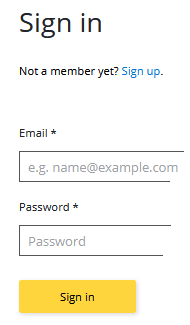
- From the welcome page, choose "Sign in" on the top menu.

- On the sign in page, enter your email address and password.
Subscribe to a Product
- APIs are grouped into products. Before using an API, you must subscribe to a product that includes
that API.
- (Note that you can explore the API definitions before subscribing. You just need to subscribe
before you can use an API.)
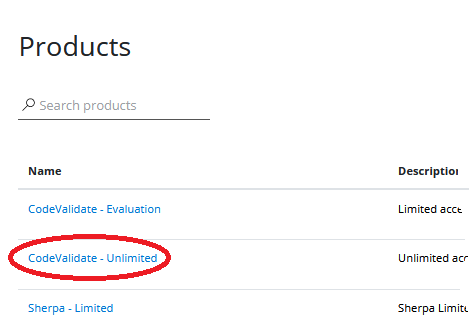
- Choose "Products" on the top menu. This will take you to the products page, which lists the
products available to you.

- Choose the product to which you wish to subscribe by clicking on its name. This will take you to
the subscription page for that product. (If you don't see the product you want, please contact your Vitalware representative.)
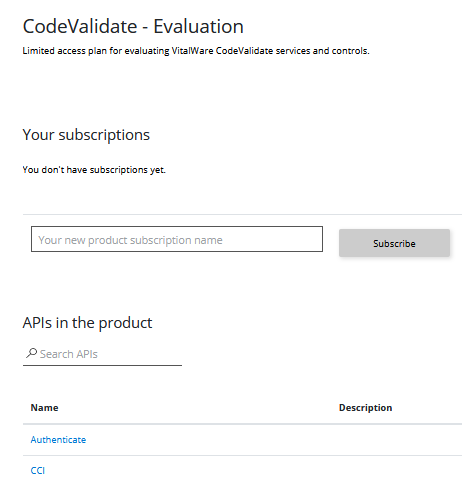
- The product page will:
- List any existing subscriptions you may have to that product.
- Provide a place to create a new subscription.
- List the APIs associated with that product.
- To create a new subscription, enter the subscription name in the provided text field, and click
the subscribe button.
- Choose a name that will help you remember what this subscription is for. (For example, if
it will be your only subscription to this product, you can just use the product name.)
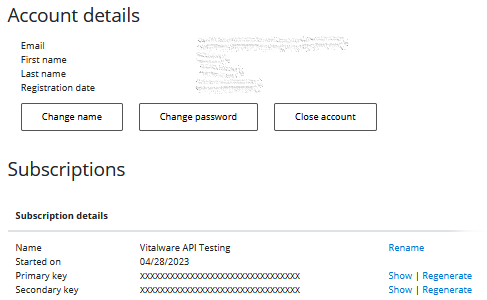
- Clicking the subscribe button will take you to your Profile page, where you can see all your
current subscriptions.
- You will see that the subscription has been granted primary and secondary keys which you will
use when calling that API.
- These keys will generally be assigned automatically at the point of use (though you can
change them there).
- Note that you can regenerate the keys (i.e. create new keys), which you should do
periodically for security purposes.
Try Out the APIs
Choose "APIs" on the top menu. This will take you to the API page.
On the API page, you can choose an API from the drop down selection. This will display information
associated with the API; this includes:
- A description of the API.
- A list of operations associated with the API (e.g. GET, POST).
- One or more sample requests and a sample response.
- A "Try it" button to test the API.
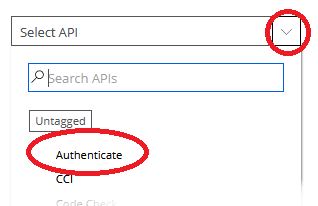
First, you'll need to use the Authenticate API to authenticate and obtain a vw-token.
- Choose "Authenticate" from the drop down selection.
- You may be given a choice of operations for some APIs, but Authenticate has only a POST
operation.
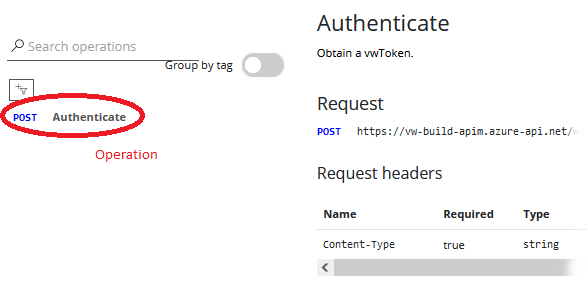
- Click the "Try it" button on the right side of the page.

- An API dialog will appear.
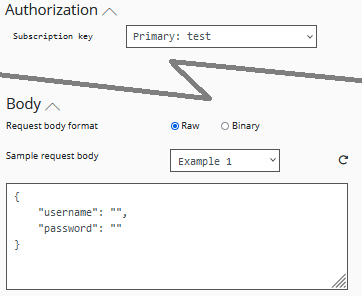
- Notice that your subscription key has been entered automatically.
- In the body of the request, enter your Vitalware username and password.
- Click the "Send" button.
- You should recieve a response that includes your vw-token. This is a temporary toke;
copy it to use in subsequent API calls.
Next, select the API you want to try from the drop down selection.
- Now you can follow steps similar to authentication.
- You may be given a choice of operations for some APIs (e.g. GET and POST). Select the
operation you desire.
- Click the "Try it" button on the right side of the page.
- An API dialog will appear.
- Notice that your subscription key has been entered automatically.
- Add your vw-token from the authentication step to the appropriate field.
- In the body or parameters of the request, a default value has been supplied.
- Note that you can copy and paste from other examples on the API page (if any).
- Click the "Send" button.
- You should recieve a response.
Construct Your Own API Calls
- Get a vw-token for each session using the Authenticate API.
- Use the product key generated by the developer portal.
- Call the API and use the results.